N64 240p Menu
The EverDrive's stock menu is a text list of file names. I redesigned it around discovery: cover art, screenshots, descriptions and mood shelves for 90 games, readable from the couch on a real CRT.
Overview
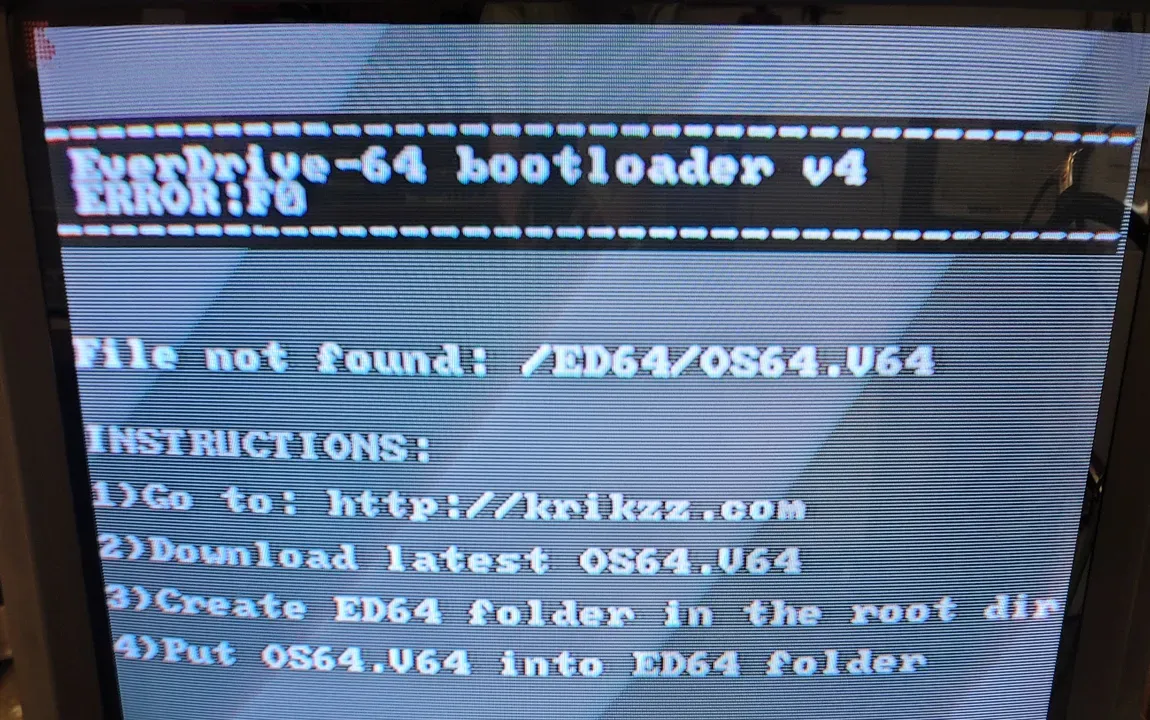
An EverDrive lets a Nintendo 64 play games from an SD card. The menu it ships with, from its maker krikzz, is a text list: folder names and ROM file names in a small font, one screen at a time. It works if you already know exactly what you want and where you put it. It does nothing to help you choose.
I redesigned the experience around browsing and discovery, the way a shelf of boxed games works, and built it to run in true 240p on the Trinitron my N64 is plugged into.
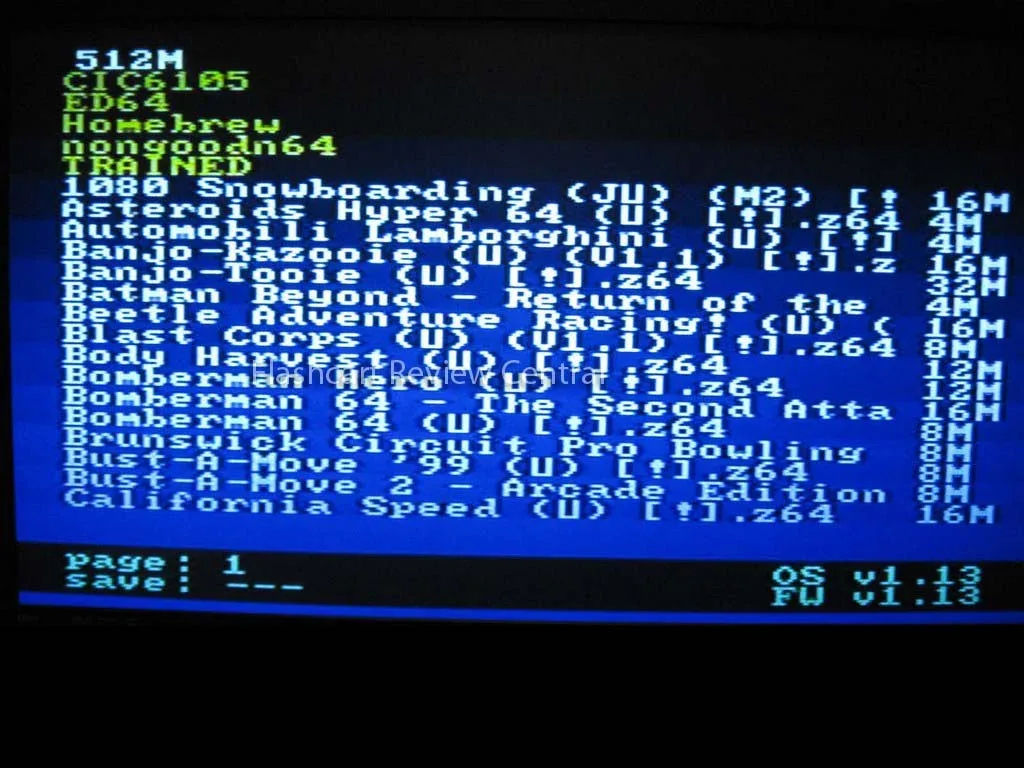
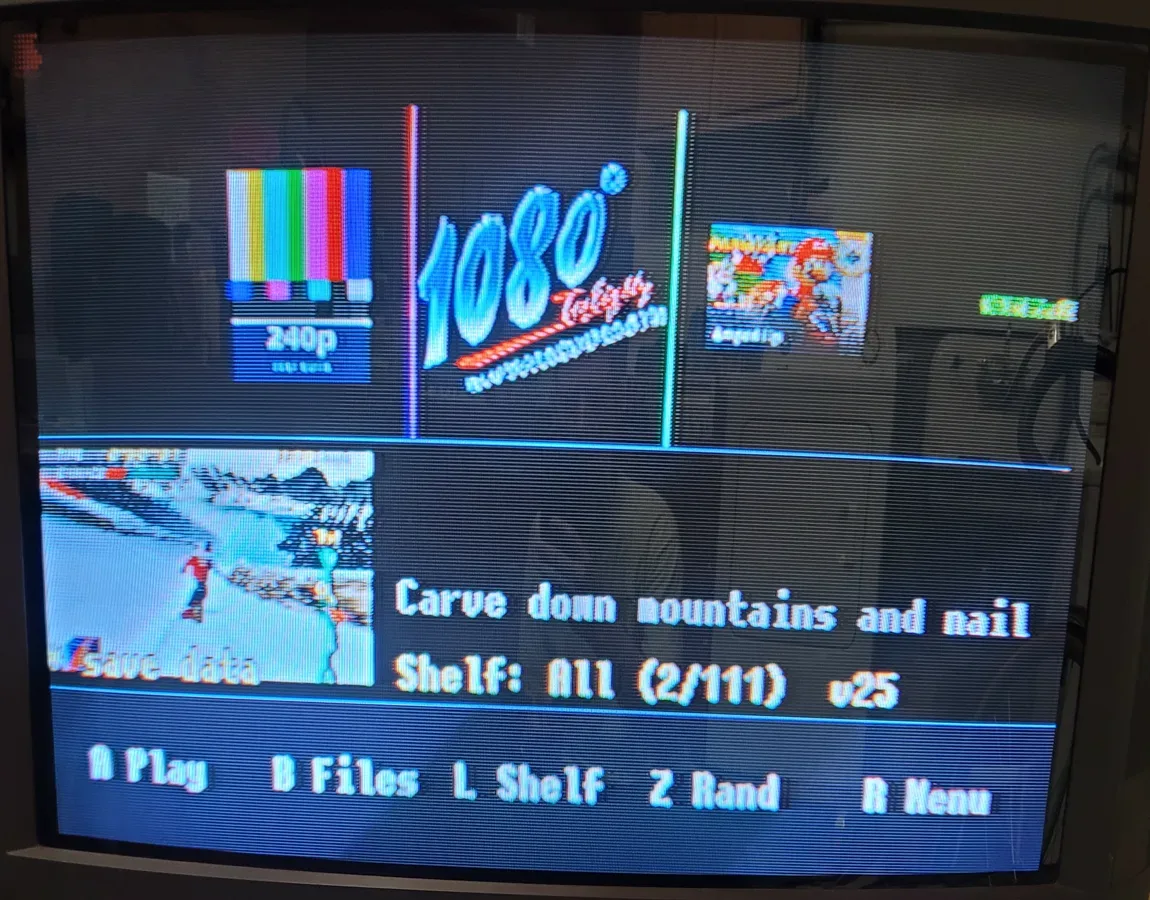
Before: krikzz's stock EverDrive-64 menu (photo: Flashcart Review Central). After: my redesign, on a Sony Trinitron.
The problem with a file list
- File names aren't game names. "Legend of Zelda, The - Majora's Mask (USA).z64" and "001 Conker..." are what you read, sorted by whatever the file happens to start with.
- Too much, all at once. My card held 2,707 ROM files: region variants, duplicates from collections, hacks, translations and prototypes. Finding one game meant drilling through folders and scrolling hundreds of near-identical rows.
- Nothing to recognise. No box art, no screenshot, no description, so a game you'd love but don't remember the name of is invisible.
- Hard to read from the couch. Small text on a CRT, in a flickering 480i picture, from across the room.
Curate first, keep everything
Before any interface work I fixed the information. I read the game code from every ROM's header and grouped files by game, which took 2,707 files down to 835 unique games. From those I curated a front page of about a hundred, since trimmed to 90: the classics, hidden gems and the hacks and translations worth playing. Nothing was thrown away. The full library is still one press of B away in the file browser, so the curated shelf adds a front door without taking anything out of reach.
Recognise, then decide
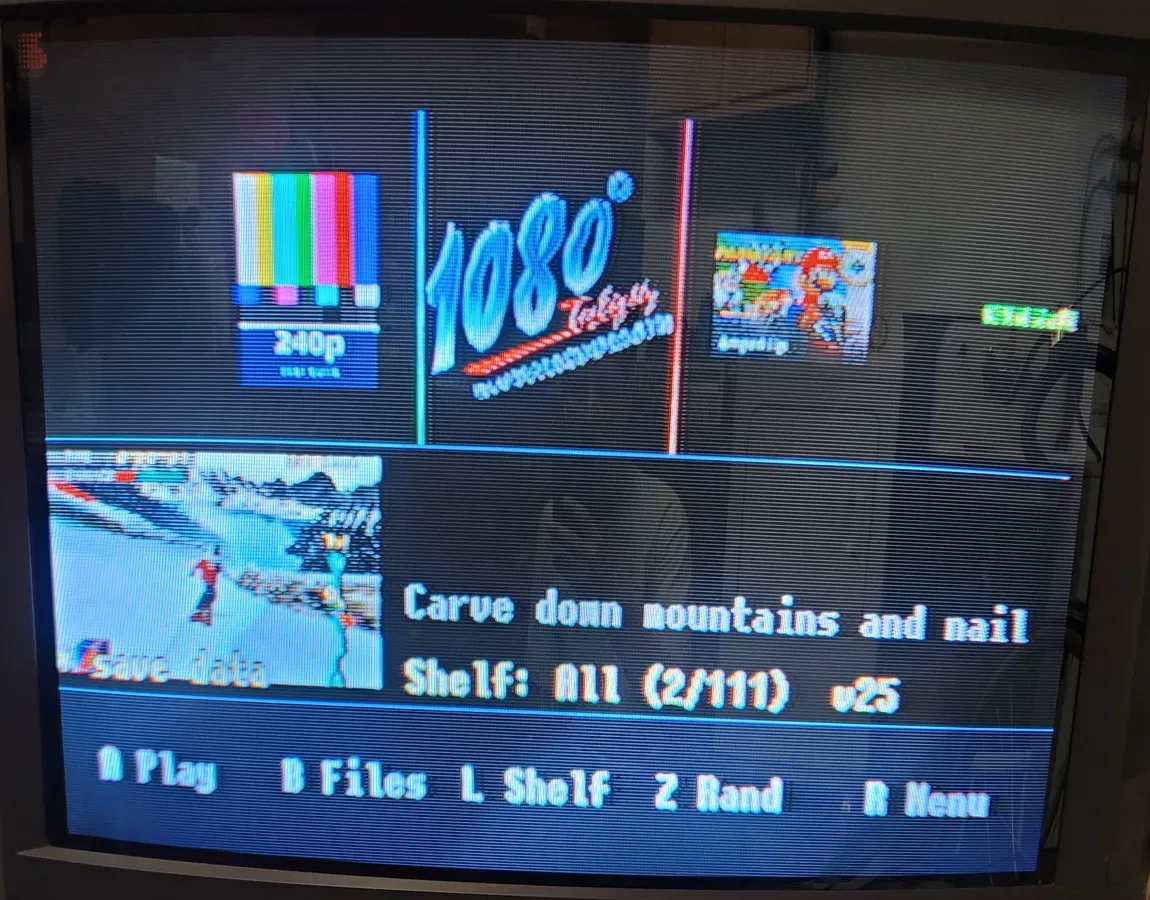
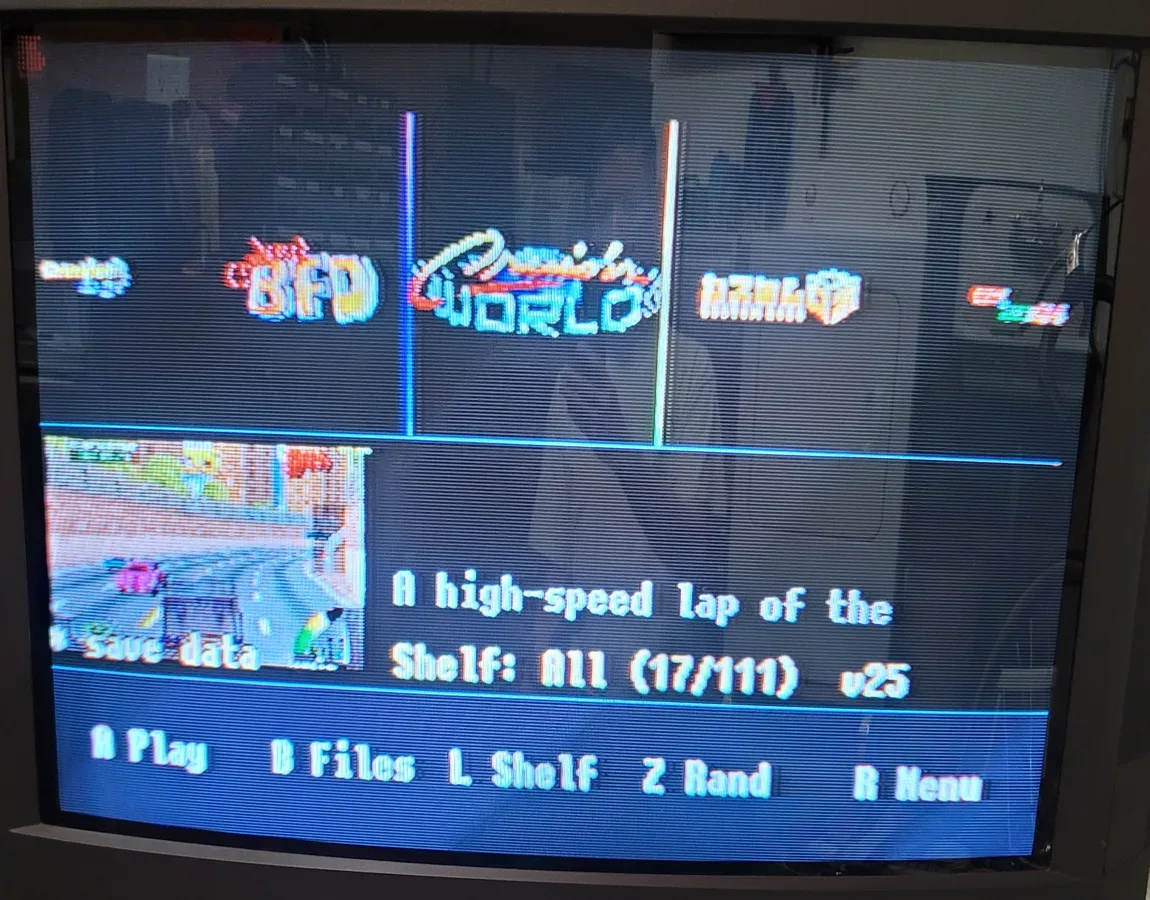
The screen splits in two. Along the top, covers scroll like boxes on a shelf, so you can spot a game by its art before you read a word. Below, the selected game gets a gameplay screenshot and a short description, which answers the questions a file name can't: what is this, and do I want to play it right now? The controls (A play, B files, L shelf, Z random, R menu) stay on screen the whole time.
Help for when you don't know what you want
- Mood shelves. Party, Racing, Action, Adventure, Chill and Homebrew, cycled with L. They match how people actually choose on a games night ("something for four players") better than an alphabetical list does.
- Random pick. Z jumps to a random game, which turns up things you'd forgotten were on the card.
- Back to where you were. The menu starts on the game you played last.
- Saves at a glance. A badge marks games you already have progress in.
- Custom covers for hacks. Romhacks reuse their base game's code, so Star Road showed up as plain Super Mario 64. I made covers so each one is recognisable on the shelf.
Designed for 240 lines
I rebuilt the menu to output 640 by 240 progressive, the same signal N64 games send, so it's sharp and steady on the CRT instead of flickering in 480i. Every pixel is twice as tall as it is wide and there's half the vertical space, so I halved the vertical layout, drew art at half height so the TV's stretch makes it look right, and widened the fonts to keep text readable from the couch. Everything sits inside the overscan, where the CRT can't crop it. A 240p test pattern is pinned first on the shelf for checking the TV before playing.
Built on real hardware, tested on the couch
The front end started from N64FlashcartMenu, an open-source replacement for the stock menu, with a community cover-art front end. I designed the experience and built it with AI coding tools across 28 builds, each played on the real console and TV. Playtest notes drove the changes: text that overlapped at 240p, a grid that loaded too slowly, screenshots that vanished while scrolling. My cart's 2014 bootloader turned out to hold a menu of only about 2 MB, so I moved 48 MB of cover art onto the SD card as one indexed file, which also made art load much faster. I wrote up that limit for the upstream project so other owners of this cart don't hit the same wall.
Later the menu itself started damaging the SD card: it rewrote its history file every time a game launched, and on this cart those rewrites corrupted the card's file table, eventually wiping the menu off the card. Now the menu rewrites its files in place at a fixed size, so launching a game never touches the file table. That fix is confirmed on the console.